

Ultimate Email Marketing Checklist for Higher Conversions
September 19, 2026You click send. A moment later, a stranger’s phone buzzes with your order receipt. That receipt is a transactional email, and it arrived in seconds. Nothing magical happened in between. An SMTP server did the job.
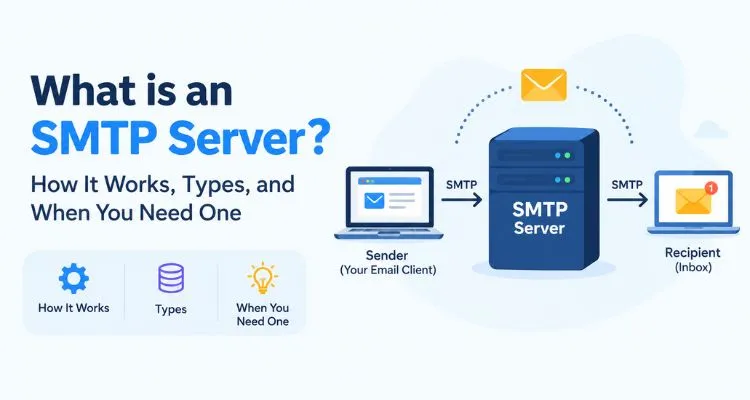
If you ever typed “what is an SMTP server” into a search bar, you are not alone. Most people ignore this tool until an email goes missing. Then it becomes the most important thing in their week.
This guide explains the SMTP server in plain words. You will see how it moves a message, where it sits in your email infrastructure, which types exist, and when a business email server setup does the job. You will also learn when it does not. (Yes, we will tell you when you don’t need to buy anything.)
Table of Contents
What Is SMTP Server Technology?
SMTP stands for Simple Mail Transfer Protocol. A protocol is a set of rules. These rules tell two computers how to pass an email from one to the other.
An SMTP server is a computer that follows those rules. It runs software that accepts your message, finds the route, and hands the message to the next server. Experts call this software a mail transfer agent, or MTA.
Picture a post office. You drop off a letter. The clerk reads the address, picks a route, and passes the letter along until it reaches the right mailbox. An SMTP server plays that role for email.
Here is a fun fact: SMTP is older than the web. The first version, RFC 821, came out in 1982. The current version, RFC 5321, dates to 2008.
One point trips people up. SMTP handles email delivery from server to server. It does not open your inbox. Two other rule sets, IMAP and POP3, let you read mail after it lands in your mailbox. Sending and reading are separate jobs.
So, what is an SMTP server in one line? It is the courier of your email infrastructure. Now let’s watch one work.
How an SMTP Server Works, Step by Step
What is an SMTP server doing during those few seconds? Seven small steps.
- You hit send: Your mail app, website, or software (the “client”) hands the message to your outgoing server or an SMTP relay.
- The client logs in: It connects, usually on port 587 or 465, and proves it has permission to send. This login keeps strangers off the server.
- The server checks the address: It reads the part after the @ sign and asks DNS, the internet’s phone book, for the recipient’s MX record. That record names the server that accepts mail for the domain.
- Two servers connect: Your server calls the recipient’s server, usually on port 25.
- They chat: Your server says hello (EHLO), names the sender (MAIL FROM), names the recipient (RCPT TO), and sends the message (DATA).
- The receiver checks and replies: It reviews your email authentication records, then answers with a code. A 250 means “accepted”. Codes that start with 4 or 5 signal trouble.
- The message lands: The receiving provider decides on inbox placement or the spam folder, then stores the message. The recipient reads it later through IMAP or POP3.
Any step can fail. When one does, email delivery stalls.
Then what? Your server does not give up. It puts the message in a queue and tries again. The standard says senders should keep trying for at least four to five days. Postfix, a widely used open-source mail program, uses five days by default.
That covers the trip. Now meet the doors of your email infrastructure: ports.
Which port does what?
| Port | Job | Good to know |
| 25 | Server-to-server relay | Many networks block it for regular users |
| 587 | Client sends mail to its server | Needs a login and upgrades to encryption with STARTTLS |
| 465 | Client sends mail to its server | Encryption starts at once; RFC 8314 restored this port in 2018 |
Most apps should use 587 or 465. Check your provider’s guide to see which one it prefers.
SMTP Server vs. Mail Server vs. SMTP Relay
People often use these terms as if they mean the same thing. They don’t. Ask “what is SMTP server” and “what is SMTP relay,” and you get two different answers.
What is an SMTP server compared with a mail server? Here is a quick way to sort them out:
- SMTP server: the part that sends and passes on outgoing mail.
- Business email server: the full setup behind a company domain. It includes the sending side, the receiving side (IMAP or POP3), message storage, and security filters.
- SMTP relay: a middle service. You hand your mail to it, and it delivers the mail for you. It also handles logins, bounces, and reputation.
- Email marketing platform: an app for building and scheduling campaigns. Some send transactional email themselves. Others connect to a separate sending service.
Put simply, the server is the machinery, and the SMTP relay is the delivery service you rent. Together with your business email server, they form your email infrastructure.
The Types of SMTP Server
What is an SMTP server in your case? That depends on who runs it and who shares its address.
By who runs it
| Type | What it is | Best for | Watch out for |
| Mailbox provider’s server | The one that comes with Gmail, Outlook, or your web host | Everyday one-to-one mail | Sending caps and few email delivery tools |
| Self-hosted | You install mail software, such as Postfix or Exim, on your own machine | Teams with strong technical skills | You handle security, blocklists, and reputation |
| Third-party service | A provider runs the email infrastructure or offers an SMTP relay, and you connect with a login | Bulk email, transactional email, and email marketing at growing volume | Monthly fees and less control |
| Hybrid | Daily mail stays on your business email server; campaigns go through a provider | Companies with mixed needs | Two systems to manage |
By who shares the IP address
- Shared IP: Many senders use the same address. It costs less and needs little setup. But another sender’s bad habits can hurt your reputation and inbox placement.
- Dedicated IP: Only you use the address, so your own habits alone shape your reputation. It suits steady bulk email volume. You also carry all the responsibility. A new IP has no history, so you raise volume slowly. Senders call this warm-up.
Want the deeper comparison? Read our guide to dedicated vs. shared IPs.
Whichever type you pick, your email authentication decides how far your mail travels.
Why Email Authentication Matters More Than Ever
Your SMTP server can send a message. That does not prove the message really comes from you. Receiving servers want proof, and email authentication supplies it. Three DNS-based checks do the work:
- SPF lists the servers that may send mail for your domain.
- DKIM adds a digital signature, so receivers can see that nobody changed the message on the way.
- DMARC tells receivers what to do when SPF or DKIM fails, and it sends you reports.
Now for the twist: one number changed the rules. That number is 5,000.
Starting in February 2024, Google and Yahoo began enforcing rules for bulk email senders: anyone who sends more than 5,000 messages a day to their users. These senders need SPF, DKIM, and DMARC. They must also add one-click unsubscribe to email marketing messages, honor unsubscribe requests within two days, and keep spam complaints below 0.3%. In November 2025, Gmail stepped up enforcement, and mail that misses the rules now faces temporary or permanent rejection.
Microsoft followed on May 5, 2025. For senders above 5,000 messages a day to Outlook.com, Hotmail.com, and Live.com, Microsoft asks for SPF, DKIM, and a DMARC record with at least a “p=none” policy. Non-compliant mail goes to the Junk folder first, and rejection follows.
Do these rules only hit giant senders? They target high-volume senders. But small senders gain too. Authentication makes it harder for scammers to fake your domain, and it supports your inbox placement and email delivery. Most industry guides read the 5,000 line as covering every message type, including transactional email.
When Do You Need an SMTP Server? (And When You Don’t)
Now for the honest part. Some businesses buy more than they need. Others wait too long. What is an SMTP server worth to you? That depends on what one lost email costs.
You likely need a dedicated setup when:
- Your site or app sends transactional email: Password resets, receipts, and login alerts must arrive fast. A late code can cost a sale.
- You send bulk email: Mailbox providers set daily caps, and bulk sending from a personal mailbox can trigger spam flags.
- Your email marketing lands in spam: A dedicated setup gives you control over your sender reputation and your inbox placement.
- You need data: Bounce logs, complaint reports, and delivery records show why messages fail.
- You near the 5,000-a-day line: At that point, email authentication becomes a must for Gmail and Outlook.com.
You likely don’t need one when:
- You send normal one-to-one mail: Google Workspace, Microsoft 365, and most web hosts already give you a business email server with an outgoing server built in, and it covers your daily email delivery.
- Your volume stays small and steady: A basic mailbox handles that fine.
- Your email marketing tool already sends for you: Many all-in-one platforms include sending. Check before you pay for a second service.
Try this quick test. Ask yourself, “If this email vanished, would it cost me money?” If yes, give it a proper home.
How to Choose an SMTP Server or Service
Price tags can mislead you here. Your email infrastructure affects revenue, so check these seven things first:
- Volume and peaks: Know your normal day and your busiest day, for campaigns and transactional email alike. Then ask whether an SMTP relay or a dedicated server fits that load.
- Email authentication help: Does the provider set up SPF, DKIM, DMARC, and reverse DNS (RDNS), or does it leave that job to you?
- IP type and warm-up: Ask about shared or dedicated addresses. Experts advise raising volume gradually on new IPs and domains.
- Abuse rules: A provider that tolerates spam puts every neighbor’s inbox placement at risk. Read its anti-spam policy.
- Monitoring and logs: Look for bounce handling, blocklist checks, and email delivery reports.
- Ports and tools: Confirm support for port 587 or 465 and for the software you use.
- Support and pricing: Look for real people and clear fees.
Why Did My Email Fail? Read the Code
If you ever searched “what is SMTP server error 550,” start here. Every failed message leaves a clue: a three-digit number. The first digit tells the story.
| Code | Meaning | What to do |
| 250 | Accepted. The receiving server took responsibility for the message. | Nothing. |
| 421 | Service not available. The server closes the connection. Temporary. | Wait. Your server retries by itself. |
| 550 | Permanent failure, such as a bad address or a policy block. | Fix the cause. Do not resend the same message. |
| 554 | Transaction failed. | Read the full error text for the reason. |
Most email delivery problems trace back to three causes: missing authentication records, a damaged sender reputation that hurts inbox placement, or a temporary problem on the receiving end. Check the simple things first, too. A wrong port or a wrong password causes plenty of headaches.
Expand Your Email Reach with DigitalAka
DigitalAka™ offers dedicated email infrastructure: a dedicated SMTP server plan for bulk email and transactional email. Every plan includes email authentication (RDNS, SPF, DKIM, and DMARC), and the team sets it up within 24 hours of payment confirmation. The servers support ports 25, 465, and 587, and they work with tools such as PowerMTA, Mailwizz, and Mautic.
DigitalAka™ also enforces an anti-spam policy. Permission-based sending protects every customer’s reputation and inbox placement. You can also keep campaign traffic away from your business email server, so one does not hurt the other’s email delivery.
Curious about cost? The pricing page lists every plan, and the SMTP server service page covers the details.
Conclusion
What is an SMTP server, at heart? It is a courier that moves your email from your app to the recipient’s mailbox. It logs you in, finds the right destination, hands off the message, and reports back with a code. If a friend asks “what is SMTP server,” you can now answer in one sentence.
You also know the rest: several types exist, authentication now matters for every sender, and plenty of people do not need to buy anything, unless they send bulk email at volume. Match your email infrastructure to your volume, and your email will thank you.
Still unsure which setup fits your email marketing? Talk to the DigitalAka™ team. They will point you to the right size, even if that size is small.
Frequently Asked Questions
An SMTP server sends and relays outgoing email. It handles newsletters, transactional email, and everyday mail. Your website, app, or mail client hands messages to it, and it delivers them to the recipient’s server.
No. The SMTP server handles the sending side. A business email server also handles receiving, storage, and filtering.
Small lists often work with a mailbox provider. Larger lists usually need a relay or a third-party service, because it handles authentication, bounces, and reputation for you. Some email marketing platforms already include one.
Port 587 lets a mail client or app send a message to its server. It requires a login and upgrades to encryption with STARTTLS. Port 465 does the same job with encryption from the first byte. Port 25 carries server-to-server traffic.
It is the login step. Your app proves it has permission to send before the server accepts any mail. Do not confuse it with email authentication (SPF, DKIM, and DMARC), which proves the message comes from your domain.
Warm-up means you raise your sending volume in small steps on a new IP address or domain. Mailbox providers have no history for it yet, so a slow start builds trust and protects your inbox placement.
It is the hostname your app connects to, such as smtp.example.com. Your provider lists it in your account settings or help pages.
Not reliably. Gmail’s outgoing server suits personal use and has strict sending limits. For bulk email at scale, use a dedicated service.